Direct answer
Pairing starts with the trusted host. Open the host menu bar agent, show the local pairing code or QR setup path, enter or scan it on the controller, then confirm the route and session state before starting the task.
Steps
Start from the host
The trusted Mac should show the pairing path. This keeps the session deliberate rather than a surprise connection.
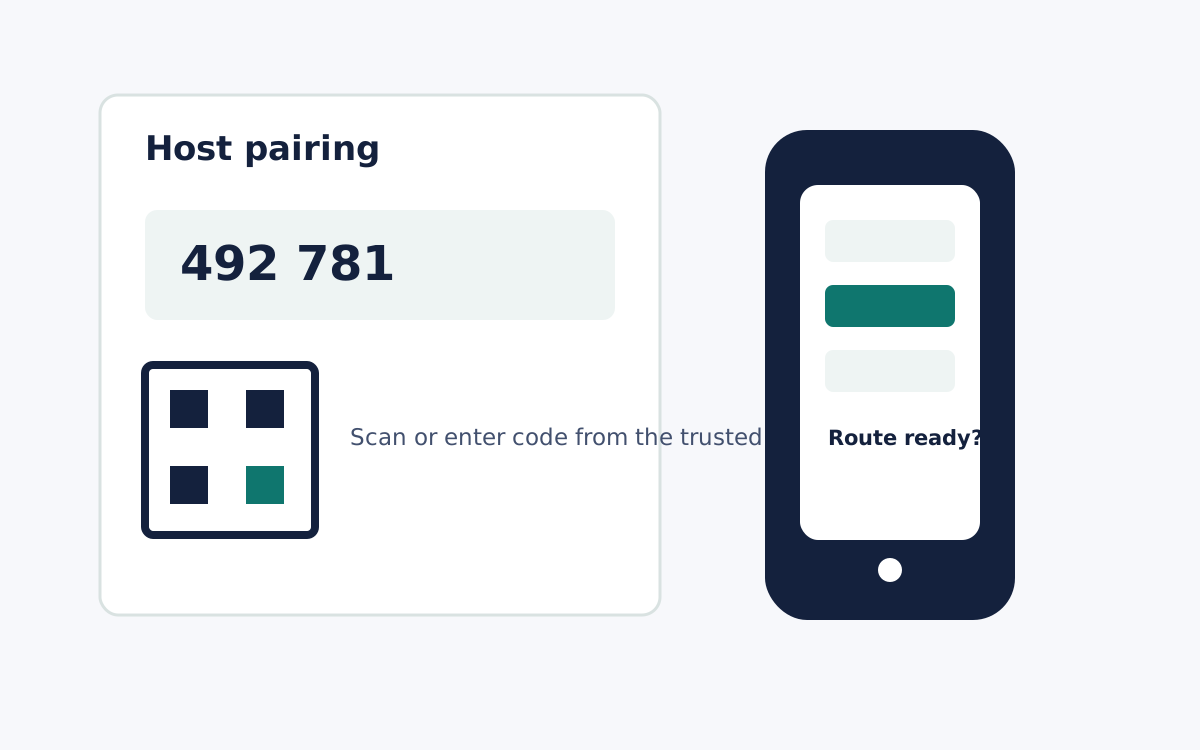
Enter or scan the setup code
Use the code or QR path shown by the host. If the code is unclear or expired, restart from the host.
Confirm route and controller fit
Before doing the task, confirm the route and controller device are the ones you expected for the session.
FAQ
Should support sessions be paired without the host knowing?
No. The session model should remain explicit: the host starts the session and shares the controller path intentionally.
What if the pairing code fails?
Check local reachability, browser support, network state, and whether the host app is still open and permissioned.