Direct answer
Install the Remote Comp Mac menu bar agent from the published DMG, drag it to Applications, open it from that stable path, and use the menu bar item for permissions, pairing codes, diagnostics, and update checks.
Steps
Download the Mac agent
Use the Remote Comp Mac setup page or approved download link. Keep downloads and update manifests tied to the signed release path.
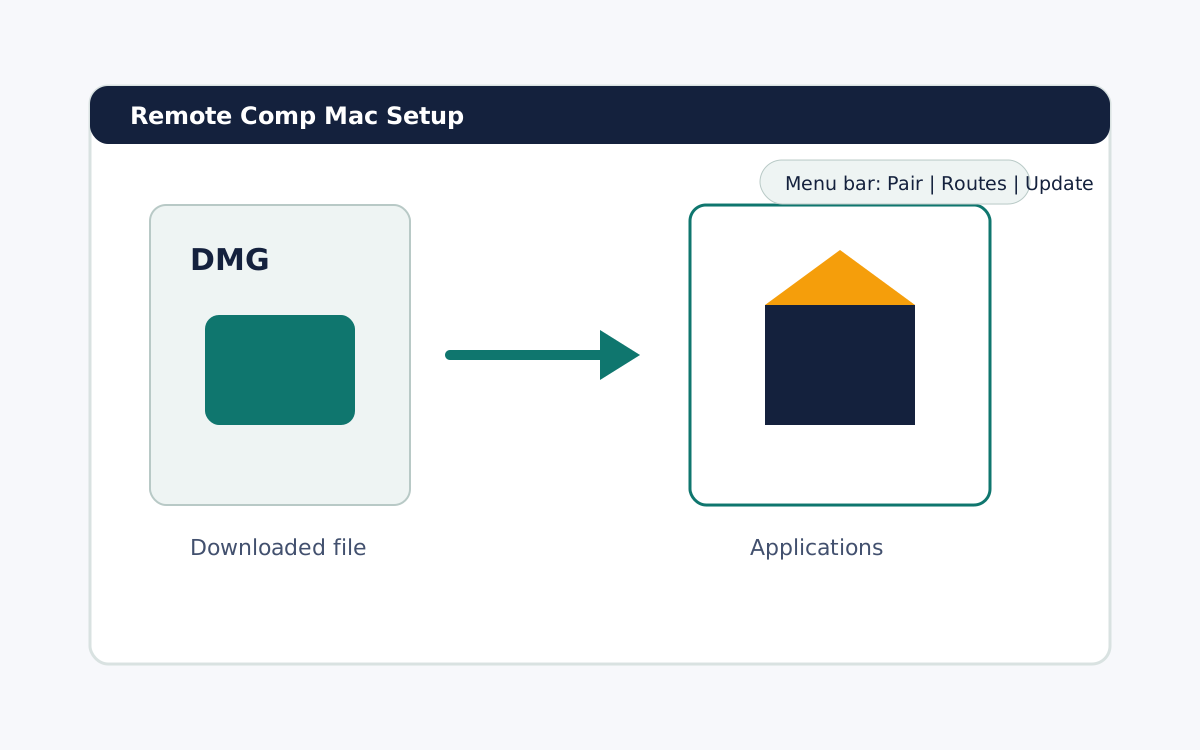
Move the app to Applications
Drag the app from the DMG into Applications, then open that installed app. Do not run important sessions from a temporary mounted image.
Confirm the menu bar item is visible
The menu bar item is the host surface for pairing, diagnostics, permissions, and update status.
FAQ
Why install from Applications?
The stable app path keeps OS permissions and update behavior easier to reason about across releases.
What should I check after installation?
Confirm the menu bar item appears, the host can show pairing information, and diagnostics can identify the current route state.