Short answer
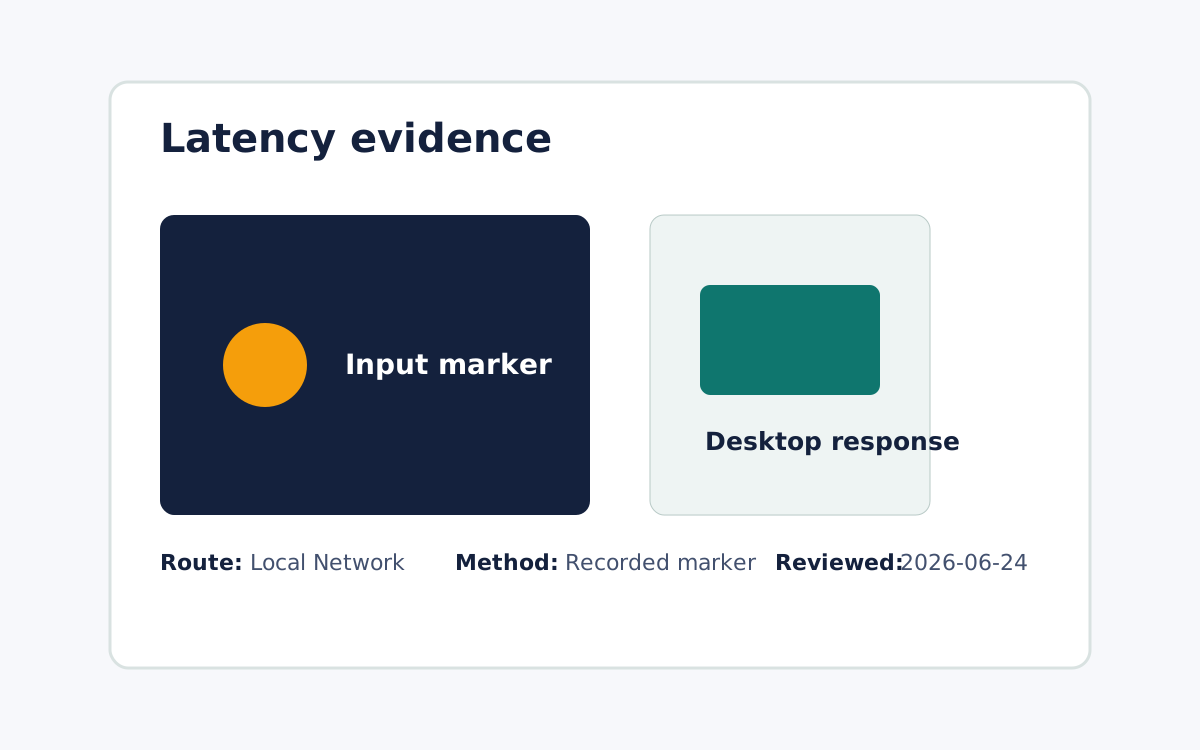
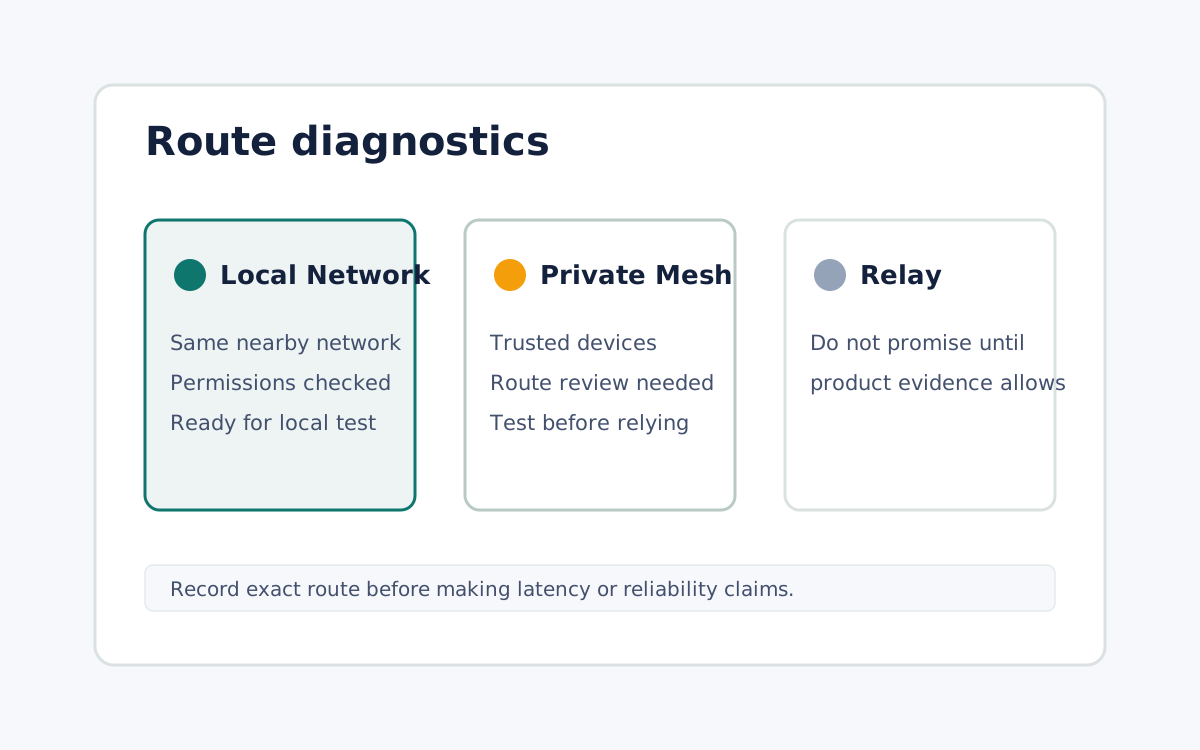
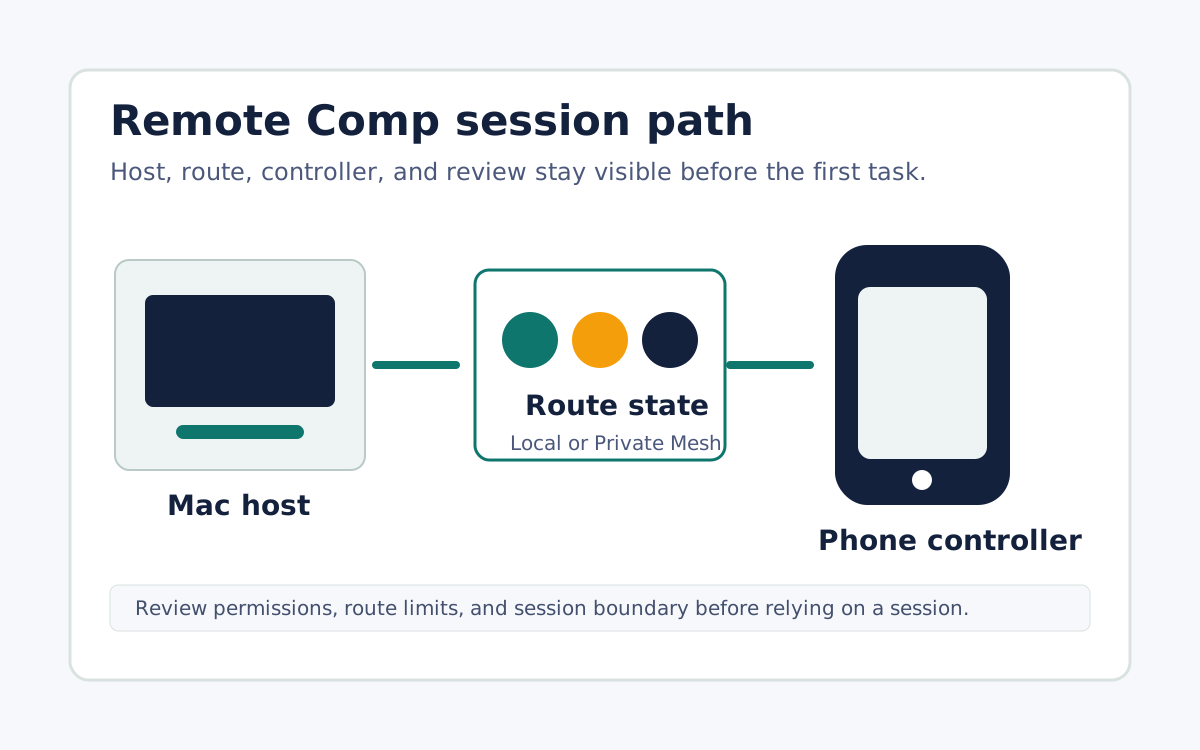
Treat latency as a property of the specific route, not a fixed number, and improve it by changing the conditions you can measure. First identify the route: a Local Network path when the phone and Mac can reach each other directly is usually the lowest-overhead option nearby, while a Private Mesh path is the trusted choice away from the desk. On a nearby session, keep both devices on a strong signal and reduce competing network load before blaming the app. Match the quality mode to the task, since a lighter mode can feel more responsive for control-heavy work. Then test the exact route with a visible input marker and desktop response point so you can compare changes honestly. One local-network benchmark is evidence for that run on that route, not a universal promise, so keep the tested conditions attached to any latency conclusion you draw.
Identify the route before tuning anything
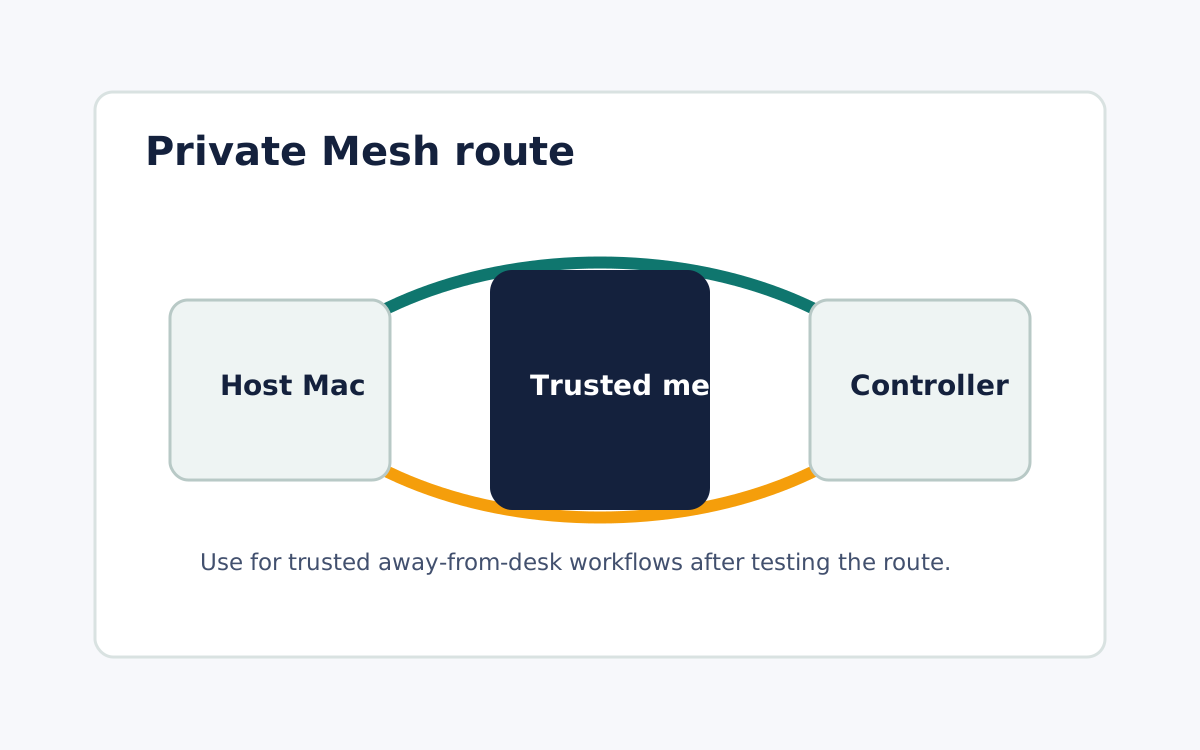
Latency behaves differently on different routes, so name yours first. A Local Network route, used when the phone and Mac can reach each other directly on the same network, generally carries the least overhead and is the right starting point when you are near the desk. A Private Mesh route is the trusted path for away-from-desk sessions. Improvements that help one route may not help another, and a benchmark taken on the nearby path says nothing about a remote path. Confirming the route in the diagnostics view keeps every later change measurable instead of guessed.
Improve the conditions you can measure
On a nearby Local Network session, keep both the phone and the Mac on a strong, uncongested signal and reduce competing traffic before concluding the app is slow. Physical distance from the access point, a saturated network, or background transfers can all raise perceived latency independently of Remote Comp. These are conditions you can observe and change, so adjust them one at a time. Making a single change and remeasuring keeps cause and effect clear, which is more useful than swapping several variables at once and being unable to say which one actually helped.
Match quality mode to the task
Responsiveness and visual fidelity trade against each other, so match the quality mode to what you are doing. A lighter mode can feel more responsive for input-heavy control work, while a higher-fidelity mode suits reviewing detail where a little more delay is acceptable. There is no single correct setting, only the one that fits the current task and route. Choosing deliberately, rather than leaving the heaviest mode on for a control-focused session, is often the most direct lever you have over how immediate the session feels from the phone.
Measure on the exact route, and keep the evidence
After each change, test the route you actually plan to use with a visible input marker on the phone and a clear desktop response point on the Mac, and record the device, route, quality mode, and review date. This turns speed into an inspectable measurement instead of an adjective. Remember that one benchmark is evidence for that single run on that route, not proof about every network, device, or future session. Keep the tested conditions attached to any latency conclusion so the result stays honest and repeatable rather than becoming an absolute claim it cannot support. When you repeat the session later, run the same measurement again so a change in feel is backed by a change you can actually see.
What it looks like