Short answer
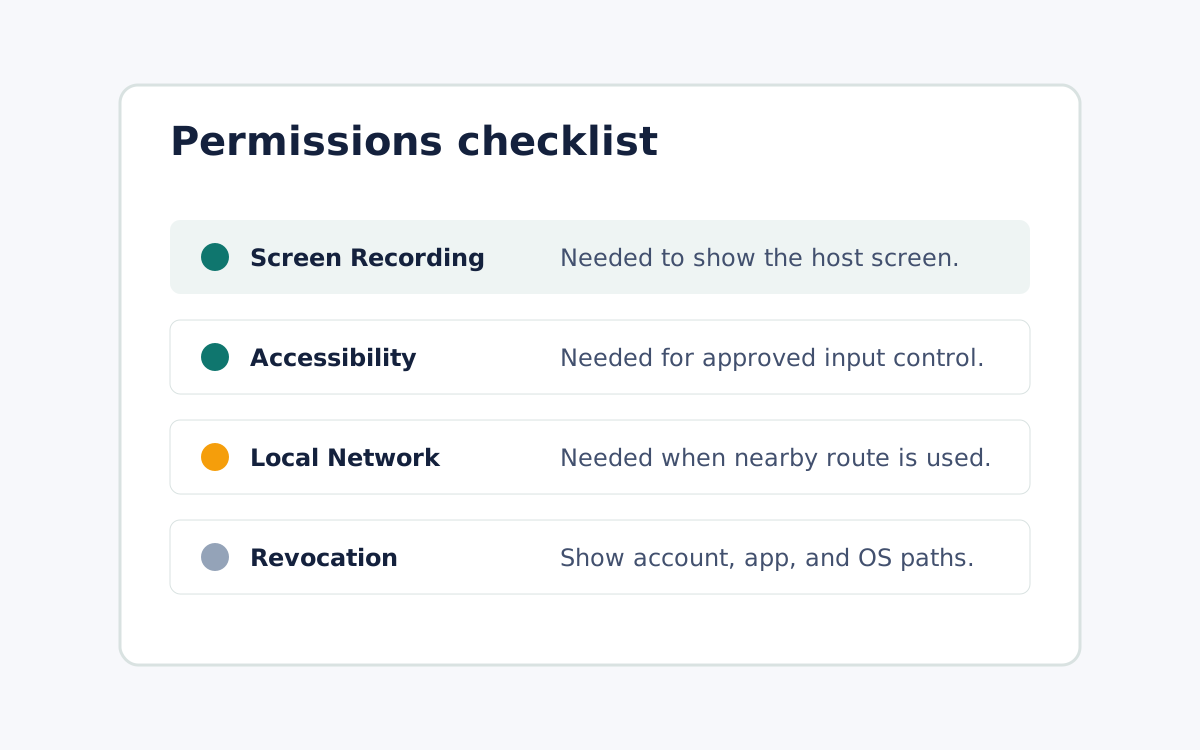
When a Remote Comp session cannot see or control the Mac, the cause is usually a missing operating-system permission rather than the network. Work through them in order on the host Mac. Screen Recording lets the controller see the screen, Accessibility lets it send input, and the Local Network prompt lets nearby devices reach each other for a Local Network route. Open macOS Privacy and Security settings, confirm each of these is granted to the Remote Comp agent, then quit and reopen the menu bar agent so the change takes effect. If control was intentionally revoked, re-grant it from the same settings and re-pair from the host. Keep the reasoning visible: each permission maps to a specific capability, and you should be able to revoke any of them from account, app, device, and OS settings when the session is done, so access stays deliberate rather than standing.
Check Screen Recording first
If the controller connects but the screen is black or frozen, Screen Recording is the likely gap. On the host, open macOS Privacy and Security settings, find Screen Recording, and confirm the Remote Comp agent is listed and enabled. macOS often requires you to quit and reopen the app after granting this permission before it takes effect, so restart the menu bar agent and reconnect. This permission exists for one clear reason: without it the operating system will not let any tool capture the display, so the controller has nothing to show even when pairing and the route both look healthy.
Then confirm Accessibility for input
If you can see the Mac but clicks and keystrokes do nothing, Accessibility is the likely gap. In the same Privacy and Security settings, open Accessibility and confirm the Remote Comp agent is enabled. Accessibility is what allows the app to send input events to the host, so it is separate from seeing the screen and must be granted on its own. As with Screen Recording, quit and reopen the agent after changing it. Tying each symptom to its specific permission keeps troubleshooting honest: a blank screen and dead input are different failures with different fixes, not one vague connection problem.
Clear the Local Network prompt for nearby routes
If a nearby session will not establish on a Local Network route, the Local Network permission may have been dismissed. macOS asks for Local Network access so devices on the same network can discover and reach each other, and declining it blocks the direct nearby path. Re-enable Local Network for the Remote Comp agent in Privacy and Security settings, then retry the route. If you are away from the desk, remember that Local Network is only the nearby path; a trusted away-from-desk session uses a saved Private Mesh route instead, so confirm which route you actually need before assuming a permission is the cause.
Re-pair, then keep revocation in reach
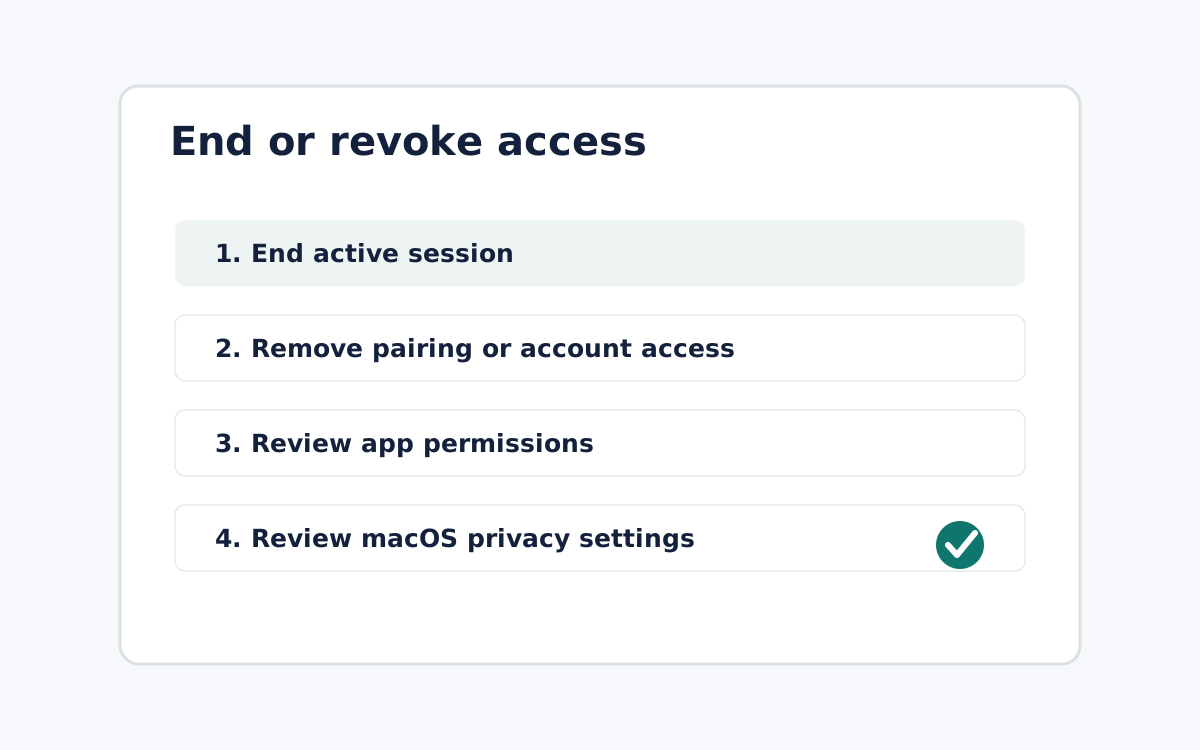
If permissions look correct but control was intentionally revoked earlier, re-grant access in settings and re-pair from the trusted host rather than from the phone, since pairing should always start on the Mac that owns the work. Once the session works, keep the reverse path in mind: you can end the session, remove pairing, and revoke each permission from account, app, device, and operating-system settings when you are done. Treat access as deliberate and reversible. A session that can be fixed permission by permission is also one you can close cleanly, which is the point of keeping the boundary visible.
What it looks like